
Posing the foot works similarly to posing the hand. You can create any foot pose you want in two ways: by applying foot preset and by using the Toe Controls mode.
Apply foot presets
You can finish your foot pose in seconds by using our foot presets library! We have already created 7 most commonly used foot presets for you. To learn more about applying preset poses, please refer to our Preset Poses tutorial.
Enter Toe Controls mode
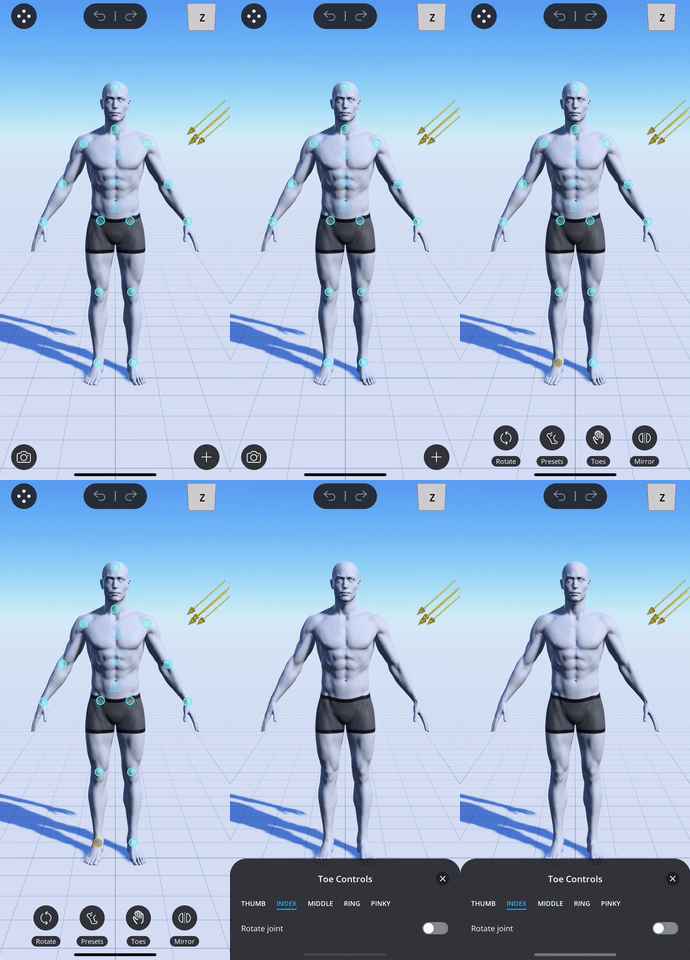
You can make any foot poses you want in our Toe Controls mode. To enter Toe Controls mode:
- Tap on the ankle control point of the character.
- Tap on the "Toes" option from the action menu that shows up.
- You will only see the toe control points show up on the character. This indicates that you are in Toe Controls mode.
Exit Toe Controls mode
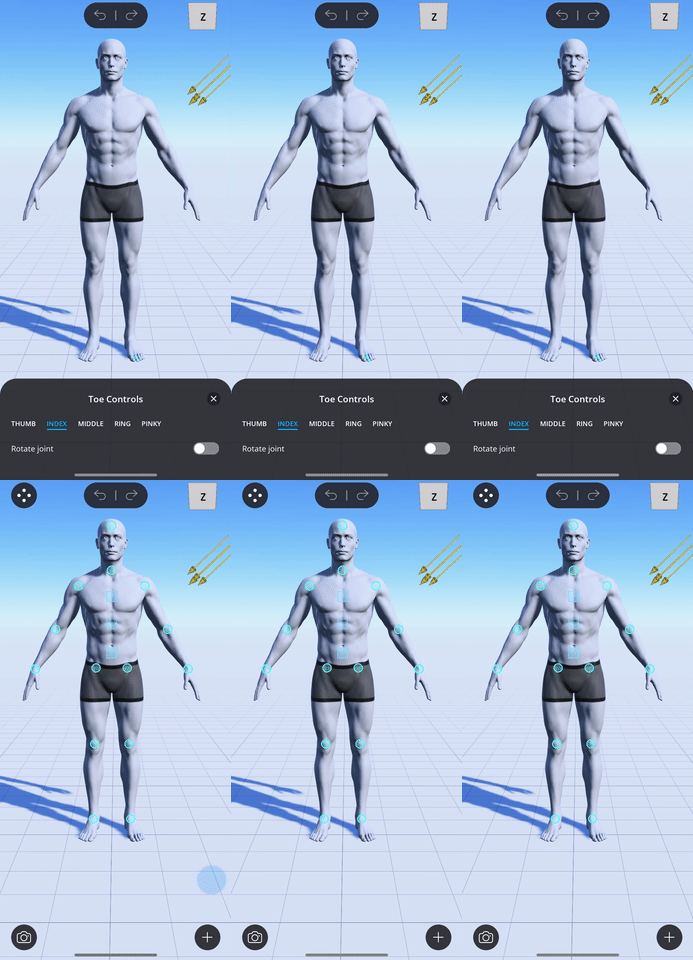
After you finish posing the foot, tap on the "x" in the top right corner of the Toe Controls menu to exit Toe Controls mode. You will see the toe control points disappear and all the other control points on the character reappear.
Select toes
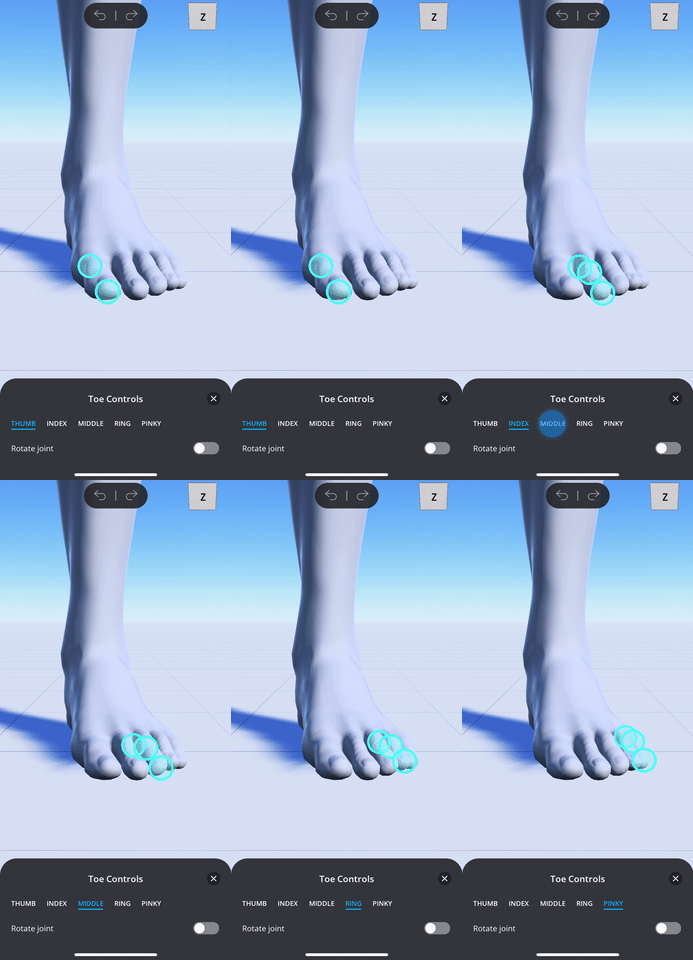
- Tap on the name of the toe in the top bar of the Toe Controls menu.
- You will see control points show up on the toe you selected.
Drag to pose the toes
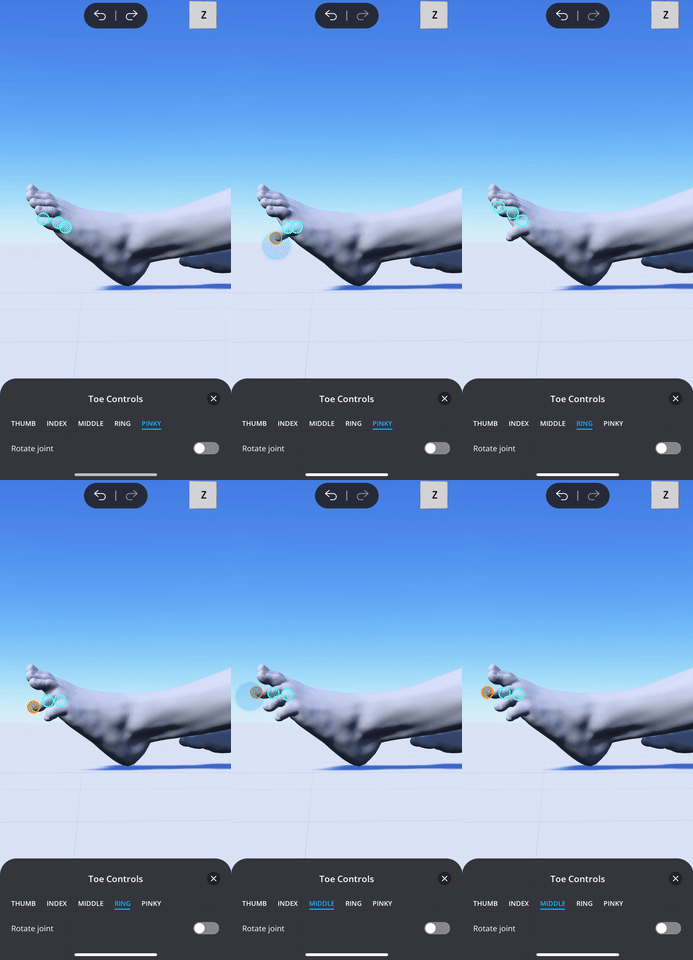
You can also drag on the toe control points just like any other control points.
Rotate toe joints
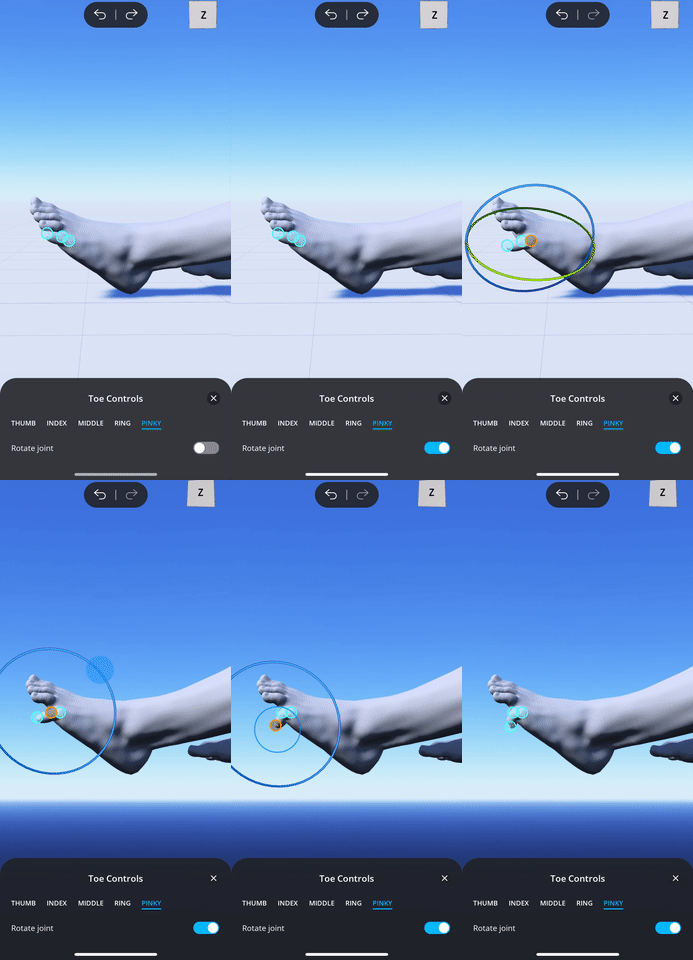
You can get even finer control by turning on the "Rotate joint" option, allowing you to rotate every toe joint in any way that is humanly possible.
- From the Toe Controls menu, turn on the "Rotate joint" toggle.
- Tap on a toe joint that you want to rotate. You will see the rotation circles show up.
- You can rotate the toe joint by dragging on these rotation circles just like any other joint.
Comments
0 comments
Please sign in to leave a comment.