
HSV is a very popular way to define color in various computer graphics programs, such as Photoshop. H stands for Hue; S stands for Saturation; V stands for Value. You can adjust all three values in Magic Poser with our HSV sliders.
What are Hue, Saturation & Value?
The image below from Wikipedia illustrates very well what Hue, Saturation and Value mean.

- Hue: The color or tint. You can think of it as all the colors on a rainbow, ranging from red to magenta.
- Saturation: The amount of gray in a particular color. A low saturation value makes the color look more grey whereas a high saturation value makes the color more intense and saturated.
- Value: The brightness of the color. A low value makes the color appear more black whereas a high value makes the color brighter.
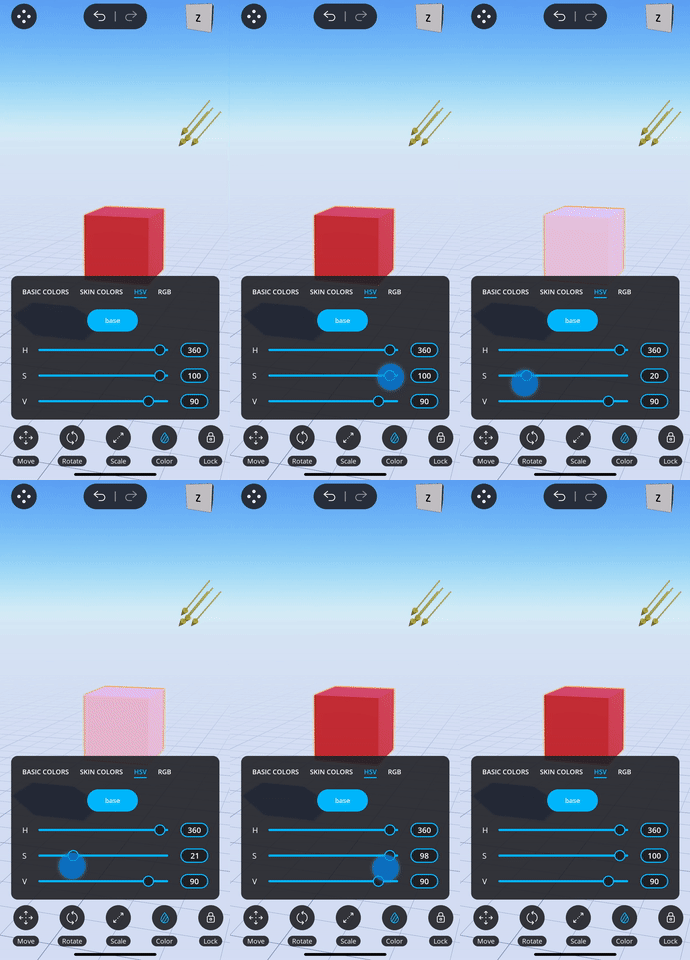
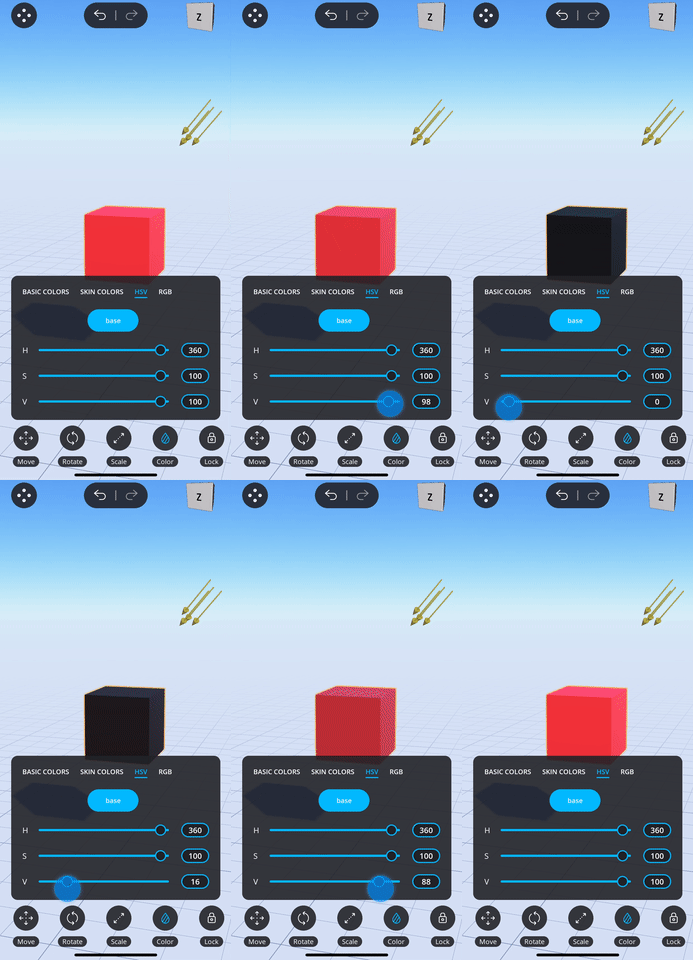
In the example below, you can see how the HSV sliders work in action:
- Hue Slider: The left most clip shows the effect of the hue slider. You can see how the color changes across the whole range of the rainbow as you drag the slider.
- Saturation Slider: The middle clip shows the effect of the saturation slider. You can see how the color changes between grey and fully red as you drag the slider.
- Value Slider: The right most clip shows the effect of the value slider. You can see how the color changes between black and a bright red as you drag the slider.

Use the HSV color menu
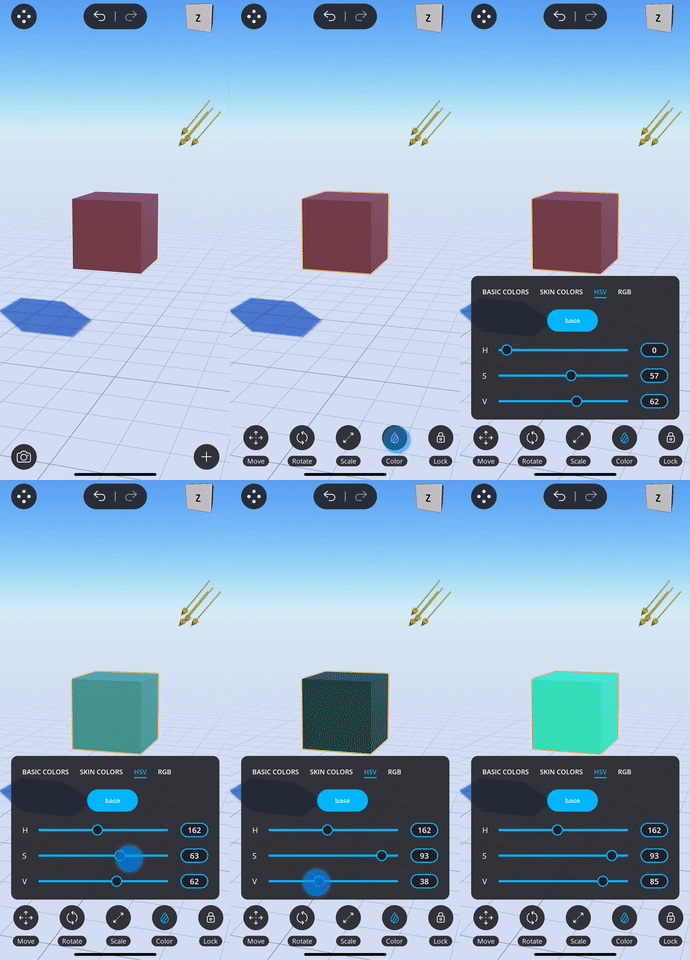
- In 3D Editor, tap to select a character, prop or light in your scene to open the Action menu at the bottom of the screen.
- Tap the Color button
 to open the Color menu.
 - Then tap on "HSV" in the top bar to open the HSV Color menu.
- You can adjust the H, S and V values by dragging on the corresponding sliders. You can see the resulting color being applied to your selected object as you drag the sliders.
Comments
0 comments
Please sign in to leave a comment.