
Our Master version unlocks all premium resources in our app. You can enjoy unlimited 3D exports, unlimited backup of your files to your very own, private Cloud, unlimited access to our ever growing Master Asset Library with 25 characters of various styles, 3000+ preset poses, 100+ hairs and clothing, 500+ props and we are adding more! (For full list of features, please refer to Explore Free, Pro and Master versions). Read on to learn how to upgrade your account to Master and unlock these amazing features!
Prerequisite
To upgrade to Master, you need to have:
- A valid Magic Poser account. You can create one following the instructions in Create and manage your account.
- A valid Apple ID. If you were able to download Magic Poser from the App Store, you probably already have this set up on your iOS device!
Free trial for Master
You can start a 7-day free trial for Master. You can start your free trial from the pricing page in the app or from one of the feature upgrade dialogs.
Start the trial from the pricing page
- From the Account page, tap on the "Upgrade" button located in the "Account" section.

- The pricing page will show up. Scroll to the card for Master version.
- Tap on "TRY 7 DAYS FOR FREE" to start your free trial.
- If you are not signed in, you will be prompted to sign in or create an account first. After you are signed in, tap on the "TRY 7 DAYS FOR FREE" button again to start your trial.
- Follow iOS system instructions to complete the process.
- You will see a dark blue MASTER tag
 at the top of your Account page with the number of days left in trial next to it.
Start the trial from the feature upgrade dialog
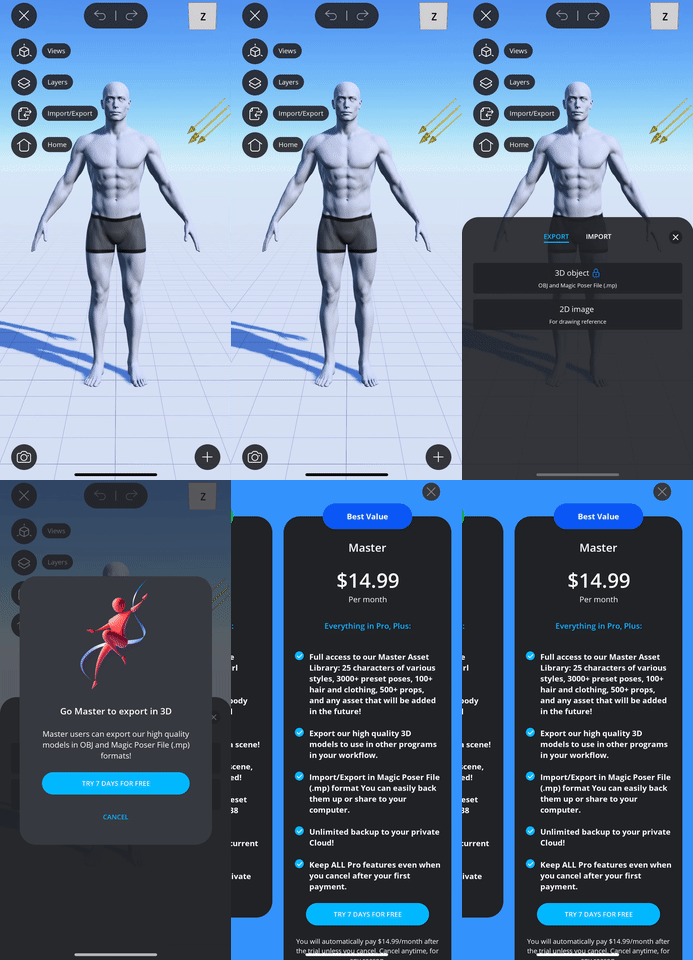
If you have not used your Master free trial, you will be prompted to start the free trial if you try to use any of the Master features in the app, for example, exporting in 3D formats and accessing Master Asset Library.
- Tap on "TRY 7 DAYS FOR FREE" from the feature upgrade dialog.
- The pricing page will show up. The rest of the steps are the same as those above. The example below shows the feature upgrade dialog for 3D export.
Subscribe to Master
Subscribe after trial ends
Since our Master version is an auto-renewable subscription, you will be automatically charged the monthly subscription price at the end of your trial unless you cancel before the trial ends. If you do not wish to cancel, you do not need to do anything to upgrade to Master version at the end of your trial. Apple will bill your account automatically, and your subscription status will be reflected in the app.
Resubscribe after cancellation
You can resubscribe to Master version in three places: from the Account page, from the feature upgrade dialog and from iOS Settings app.
Resubscribe from the Account page
- From the Account page, tap on the "Upgrade" button located in the "Account" section.
- The pricing page will show up. Scroll to the card for Master version.
- Tap on "SUBSCRIBE" to subscribe to Master.
- If you are not signed in, you will be prompted to sign in first. After you are signed in, tap on the "SUBSCRIBE" button again to subscribe.
- Follow iOS system instructions to subscribe to Master version.
- You will see a dark blue MASTER tag at the top of your Account page. The number of days left in trial will be gone, indicating that you are not in trial any more.
Resubscribe from the feature upgrade dialog
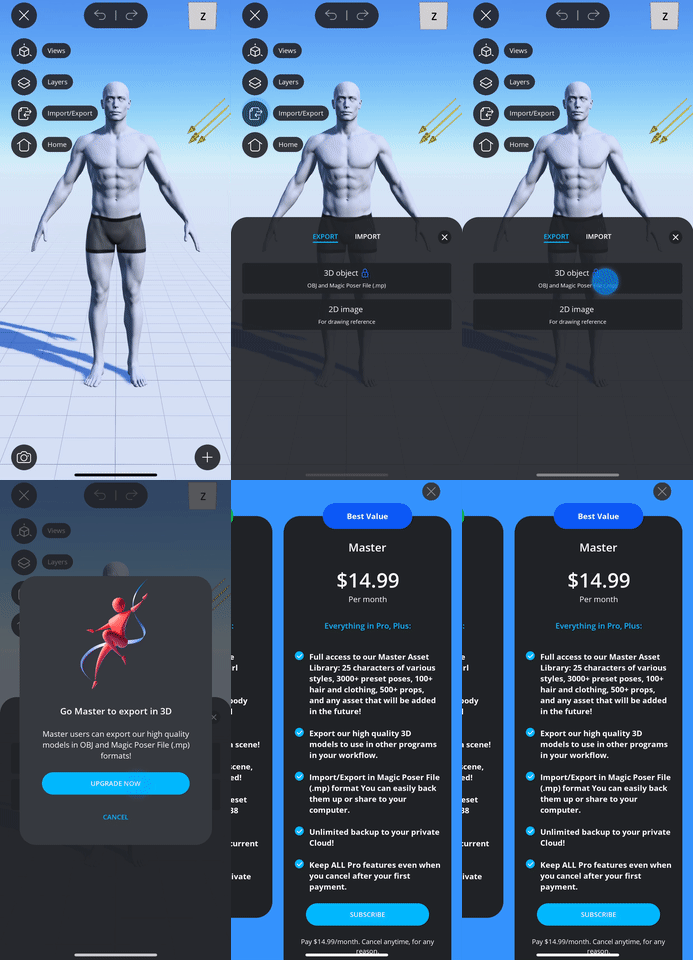
After your free trial or your Master subscription expires, you will be prompted to resubscribe to Master if you try to use any of the Master features in the app, for example, exporting in 3D formats and accessing Master Asset Library.
- Tap on "SUBSCRIBE" from the feature upgrade dialog.
- The pricing page will show up. The rest of the steps are the same as those above. The example below shows the feature upgrade dialog for 3D export.
Resubscribe from iOS Settings app
You can also manage your subscription from the iOS Settings app. For details, please refer to this article on Apple's support website.
Manage your subscription
View your subscription status in app
- From the Account page, tap on the "Manage Subscription" button located in the "Account" section.
- On the "Manage Subscription" page that shows up, you can view the current plan you are subscribed to and the next billing date.
Cancel your subscription
You can cancel your subscription from the Manage Subscription page in our app or in iOS Settings app.
Cancel your subscription in iOS Settings app
You can cancel your subscription from the iOS Settings app. For details, please refer to this article on Apple's support website.
Start the cancellation from the app
We have made it easy for you to navigate to the Subscriptions page in the iOS Settings app from the Magic Poser app:
- From the Account page, tap on the "Manage Subscription" button located in the "Account" section.
- On the "Manage Subscription" page that shows up, tap on "Cancel Subscription" button.
- You will be redirected to the Subscriptions page in iOS Settings app. Follow Apple's instructions to cancel the subscription.
Comments
0 comments
Please sign in to leave a comment.